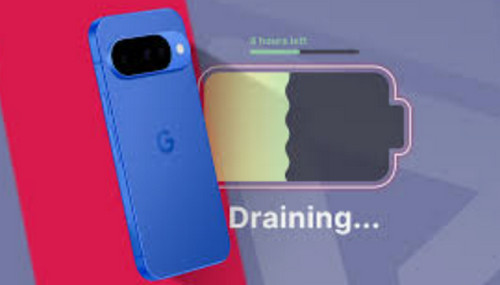
A Comprehensive Guide to Preventing Battery Degradation on the Google Pixel 10 Pro
While the Google Pixel 10 Pro features a sophisticated battery management system, including the mandatory ‘Battery Health Assistance,’ the fundamental principles of lithium-ion battery care remain the most effective long-term strategy. The goal is to minimize stress factors like heat, extreme charge levels, and high power drain, which are the primary causes of chemical degradation.1
This guide provides an in-depth, multi-faceted approach to maximizing the usable lifespan of your Pixel 10 Pro’s battery, spanning hardware practices and software optimizations.
Part I: Mastering the Science of Charging (The Core Strategy)
The single greatest influence on battery lifespan is how you charge it. Lithium-ion batteries degrade fastest when held at very high or very low states of charge, and when exposed to heat.
1. Optimize the Charging Window (The “Sweet Spot”)
The ideal state of charge for a Li-ion battery is between 40% and 80%. While not always practical, keeping your battery within this range as often as possible will dramatically reduce chemical stress.
- Avoid the Extremes: Do not consistently let your phone drop below 20% and avoid charging it to 100% unless you immediately intend to unplug it and use it.
- Embrace Opportunistic Charging: Instead of waiting for the battery to be near empty, plug in your phone for short bursts throughout the day (e.g., 20 minutes in the car, 30 minutes at your desk) to keep it in the optimal 40%-80% range.
2. Utilize Pixel’s Built-in Adaptive Charging Features
Google’s software is designed to manage charging for you, which is particularly important given the Pixel 10 series’ new, mandatory Battery Health Assistance feature.2
- Adaptive Charging: Ensure this feature is enabled (Settings > Battery > Battery health > Charging optimization > Adaptive Charging). This is crucial for overnight charging, as it charges the phone to 80% quickly, then holds it there, only completing the charge to 100% shortly before your usual wake-up time, minimizing the time spent at maximum voltage.3
- Limit to 80%: The Pixel 10 Pro, like later Pixel models, offers a feature to cap the maximum charge at 80% (check in Settings > Battery > Battery health).4 This is a powerful tool to reduce battery stress and should be used whenever a full charge is not immediately necessary for a long day out.
3. Manage Heat During Charging
Heat is a battery killer.5 High temperatures accelerate the chemical degradation process, especially when combined with high states of charge.
- Remove the Case: If your phone gets noticeably warm while charging, remove its case. Cases trap the heat generated by the battery and the charger.
- Avoid Charging Under Load: Do not use your phone for intensive tasks (gaming, video streaming, demanding apps) while it is plugged in and charging, as this generates a significant amount of heat.
- Cool Environment: Charge your phone in a cool, well-ventilated area, away from direct sunlight, blankets, or warm surfaces.6 Google recommends an ambient temperature of around 7
(8
).9
4. Use Recommended Charging Hardware
Always use the original power adapter that came with your Pixel or a third-party charger that supports the USB Power Delivery (PD) or Power Delivery Programmable Power Supply (PPS) standard. Using incompatible or very cheap chargers can sometimes lead to inconsistent voltage and increased heat.
Part II: Software Optimization to Reduce Daily Stress
While charging practices are paramount, reducing the everyday power draw will lower the number of charge cycles you need, thereby extending the battery’s life.
5. Leverage Adaptive Battery and Optimization
The Pixel’s AI-driven features are designed to learn your habits and manage power consumption efficiently.10
- Adaptive Battery: Keep this enabled (Settings > Battery > Adaptive preferences). Over time, it learns which apps you use and restricts the background activity and power consumption of less-used applications.11
- Restrict Background Apps: Manually check apps with high background usage (Settings > Battery > Battery usage).12 For apps you don’t need instant notifications from (e.g., social media or non-essential games), set their battery usage to “Restricted.”
6. Display Settings for Power Reduction
The high-resolution, high refresh rate OLED display is a major battery consumer.
- Adaptive Brightness: Enable this (Settings > Display > Adaptive brightness).13 It automatically adjusts the screen brightness based on ambient light, preventing the screen from being unnecessarily bright (and power-hungry) in dark environments.
- Disable Always-on Display (AOD): While convenient, AOD constantly illuminates pixels.14 Turning it off can save a significant amount of daily drain (Settings > Display & touch > Always-on display > Off).15
- Use Dark Theme: Since the Pixel uses an OLED screen, using the Dark Theme (Dark Mode) causes black pixels to be completely off, conserving power.
- Smooth Display (Refresh Rate): If battery longevity is a greater concern than absolute smoothness, you can lock the display refresh rate to 60Hz instead of allowing it to use the higher 120Hz/adaptive setting.16
7. Manage Connectivity and Background Features
Turn off high-drain radios and sensors when they are not in use.
- Adaptive Connectivity: Ensure this feature is on (Settings > Network & Internet > Adaptive Connectivity). This allows the phone to automatically switch between 5G and 4G/LTE based on what you’re doing, opting for the more power-efficient 4G for basic tasks.17
- Disable Location, Wi-Fi, and Bluetooth Scanning: Go to Settings > Location > Location services and turn off Wi-Fi and Bluetooth scanning, as these constantly search for networks even when the main radios are off.18
- Turn off High-Drain Features: Disable “Now Playing” (automatic song recognition) and “Hey Google” or “Ok Google” detection if you don’t use them, as they require the microphone to be constantly listening.19
Part III: The Pixel 10 Pro’s Built-in Limitation (The 200-Cycle Factor)
It is critical to understand the Pixel 10 Pro’s new, mandatory Battery Health Assistance feature. Unlike previous models, Google has confirmed that the Pixel 10 series has a non-optional software feature that begins to adjust (reduce) the battery’s maximum voltage in stages starting at 200 charge cycles, gradually continuing until 1,000 cycles.20
- What it means: This means that the phone will deliberately reduce its effective maximum capacity and charging speed early in its life.21 While this can seem counter-intuitive, Google’s stated goal is to stabilize long-term performance and aging by mitigating the risk of performance issues (throttling) or battery swelling that can occur as batteries age.22
- Your Action: Since this feature cannot be disabled, your focus must shift from fighting the limit to maximizing the usage before the limit is hit, and minimizing the number of charge cycles overall.
- Focus on the “Sweet Spot” (40%-80%): By doing this, one “charge cycle” (charging from 0% to 100% capacity) takes longer to accumulate. Charging from 60% to 80% only counts as 20% of a full cycle.
Summary of Best Practices
| Category | High Priority Action | Rationale |
| Charging | Keep charge between 40% and 80% as much as possible. | Minimizes the highest-stress charge states. |
| Heat | Remove the case when charging, especially if the phone is warm. | Heat is the #1 accelerant of degradation. |
| Software | Enable Adaptive Charging for overnight use. | Holds the charge at a low-stress level until you need 100%. |
| Display | Use Dark Theme and Adaptive Brightness. | Significantly reduces the power drain from the screen. |
| Usage | Enable Adaptive Battery and restrict non-essential background apps. | Lowers the daily power requirements, reducing the need for full charge cycles. |
